 Expertspost
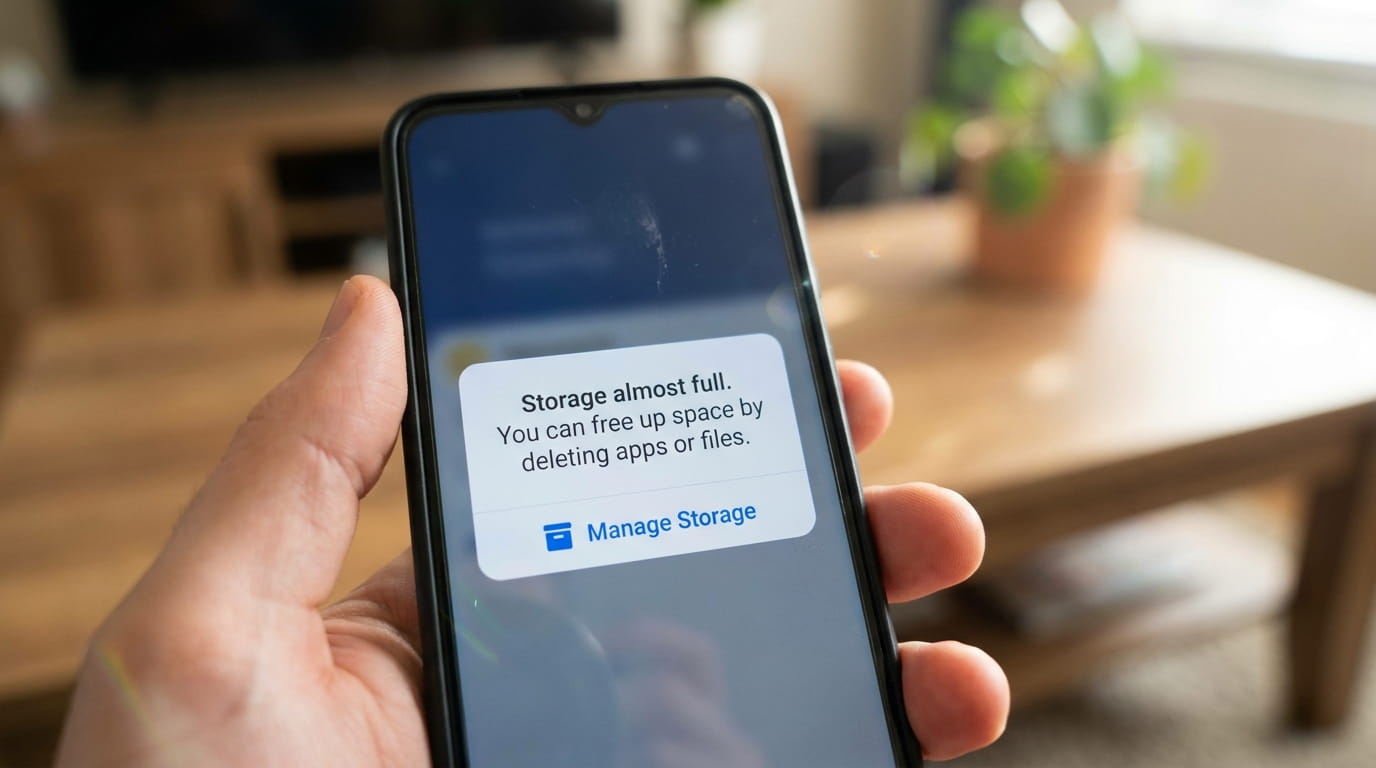
There is a specific flavor of dread that comes from your phone refusing to take a photo at the exact moment something is worth photographing, because storage is full. I have been there in a parking lot trying to snap a dented bumper for insurance. Here is the routine I use now to clear space fast without accidentally deleting anything I will miss.
Find what is actually eating space
Do not start deleting at random. Start by looking at the breakdown, because phones tell you exactly what is using space if you ask. On iPhone: Settings > General > iPhone Storage. On Android the path varies by brand but is generally Settings > Storage, sometimes under "Device care" on Samsung. Give it a moment to calculate.
You will see a bar chart split into Photos, Apps, Media, Messages, and System. For almost everyone, Photos and Videos are the biggest slice by far, with one or two media-heavy apps in second place. Knowing the real distribution stops you from deleting forty tiny apps to reclaim space that one video podcast app is actually hogging.
One category that confuses people is "System" or "System Data," which can look alarmingly large. This is mostly caches and temporary files the phone manages itself, and it usually shrinks on its own over time, especially after a restart. Do not panic about it and do not go hunting for ways to wipe it; it is not where your easy wins are. The easy wins are almost always in photos and a handful of bloated apps, which is exactly where I focus.
The fastest safe wins
When you need space right now, these reclaim the most for the least risk.
- Clear "Other" and offload unused apps. iPhone's storage screen lists recommendations like "Offload Unused Apps," which removes the app but keeps its data so you can reinstall later. This is safe and often frees gigabytes.
- Delete downloaded video. Episodes saved in Netflix, podcast downloads, and offline music are huge and easy to re-download later. Check those apps' download sections first.
- Empty the recently deleted folder. Deleted photos sit in a "Recently Deleted" album for 30 days, still using space. Emptying it frees that space immediately. Just be sure you do not still want those photos, because this step is permanent.
- Clear large message attachments. Group chats full of videos and memes add up. iOS shows "Review Large Attachments" in the storage screen.
Look before you delete. The storage breakdown screen tells you exactly where the space went.
Photos and videos: the usual offender
Since photos and videos are almost always the biggest culprit, this is where the real space lives. But here is the firm warning: do not bulk-delete photos until you are certain they are backed up somewhere. Lost photos are the one thing you cannot recover later.
The clean solution is to back up your library to the cloud and then let the phone store smaller versions locally. On iPhone, "Optimize iPhone Storage" (in Settings > Photos) keeps full-resolution copies in iCloud and lightweight versions on the device. Google Photos does the equivalent on Android once your photos are safely backed up. This can free enormous amounts of space without losing a single image.
Before you trust that, make sure your backup is genuinely complete and reliable. It is worth getting a proper system in place once; I walk through exactly how I do it in this guide to backing up photos so you never lose them. After that, deleting local copies is painless because the originals are safe.
Videos deserve a special mention. A few minutes of 4K video can eat a gigabyte. Scroll your camera roll for old long videos you no longer need, save anything precious, and clearing a handful of them often solves the whole problem on its own.
Apps, caches, and the sneaky stuff
After photos, individual apps are the next layer. Some apps balloon over time with cached data they never clean up.
- Find the heavy apps. Back in the storage screen, tap individual apps to see how much they and their data use. Social media, navigation maps, and streaming apps are common offenders.
- Clear cache on Android. Android lets you clear an app's cache directly (App info > Storage > Clear cache), which is safe and keeps your login and data. iOS has no universal cache button, so for a bloated iOS app you often delete and reinstall it instead, which loses cached junk but keeps cloud-synced data.
- Delete genuinely unused apps. Be honest about the games and trials you opened once. Removing them is the cleanest space you will reclaim.
- Watch for downloaded files. A Downloads or Files folder can quietly accumulate PDFs, installers, and saved images you forgot about.
Keeping it from filling up again
Clearing space once and watching it refill in three weeks is the real frustration. A few habits keep the warning from coming back.
Turn on cloud photo backup with local optimization so your camera roll stops being the bottleneck. Periodically delete downloaded media you have already watched. And every couple of months, spend five minutes in the storage screen reviewing the biggest items rather than waiting for the panic moment in a parking lot.
A habit that quietly helps: turn off automatic media saving in your busiest chat apps. By default, every photo, video, and meme sent to a group chat downloads itself to your phone, and a single active group can dump gigabytes onto your device over a year. In most messaging apps there is a setting to stop auto-saving media to the camera roll, and flipping it off means only the things you actually choose to keep take up space.
It is also worth restarting the phone after a big cleanup. A restart clears temporary files and lets the system recalculate free space accurately, since the storage figure sometimes lags behind what you have actually deleted. If you cleared several gigabytes and the number has not moved, give it a reboot before you worry that nothing happened.
If you genuinely use all your space despite good habits, that is a sign your phone's storage tier is too small for how you use it, and the lesson is to buy more storage on your next phone rather than fighting this battle monthly. On Android, some phones still take a microSD card, which is the cheap way out; many newer phones and all iPhones do not, so on those the only real expansion is cloud storage or a bigger device. But for most people, the full-storage warning is not a hardware problem. It is old videos and bloated apps, and twenty minutes of the right cleanup buys back months of breathing room.