 Expertspost

Photos are the one category of data most people would call irreplaceable, and also the one most commonly protected by nothing more than a half-remembered cloud setting. The classic failure is mundane: sync got switched off months ago to save storage, the phone goes in a lake, and four years of pictures go with it. A real backup system defends against that and several other disasters at once, and it takes about an hour to build.
The 3-2-1 rule, in plain English
The standard guideline among IT professionals is called 3-2-1: keep three copies of anything you care about, on two different types of storage, with one copy kept somewhere else physically. It sounds like overkill until you notice that each digit defends against a different disaster.
Three copies protect against accidental deletion and corruption. Two storage types protect against a single technology failing, like a hard drive dying. The off-site copy protects against fire, theft, or flood taking out your home and everything in it at once. None of this requires enterprise gear: for photos, a phone with cloud sync, one external drive, and one copy that lives elsewhere satisfies the whole rule.
Layer one: automatic cloud sync
The first copy should be the one that happens without you thinking about it. For phone photos that means iCloud Photos on iPhone or Google Photos on Android, because a backup you have to remember to run is a backup that stops happening by March.
Check that it is actually on right now. On iPhone, per Apple's iCloud Photos documentation, the switch lives at Settings > your name > iCloud > Photos > "Sync this iPhone." On Android, Google's backup instructions are to open Google Photos, tap your profile picture, and confirm Backup is on for the right account. A surprising number of phones have this quietly disabled.
The free tiers fill up fast: iCloud includes 5 GB free, and Google's 15 GB is shared across Gmail, Drive, and Photos. Most people with more than a year or two of photos end up paying a few dollars a month, which is cheap insurance. The trap worth knowing about is what happens when the free bucket fills: the service simply stops backing up new photos, usually with a notification that gets swiped away. A phone that has silently failed to back up for six months looks identical to one that is working, so check the storage meter occasionally, not just the on/off toggle.
Two settings deserve a glance while you are in there. Google Photos offers a choice between backing up original quality and a compressed "storage saver" tier; compressed is acceptable for casual snapshots, but originals are the safer default for anything you might one day print or crop. And on both platforms, check whether backup is allowed over cellular data or waits for Wi-Fi, because a phone that only backs up on Wi-Fi can run days behind during a trip, which is precisely when phones get lost.
Why sync alone is not a backup
Cloud photo services are synchronization systems first. Their job is to make every device show the same library, which means a deletion on your phone propagates everywhere: delete a photo at the kitchen table and the "backup" copy in the cloud is deleted too. Both major services keep deleted items in a recovery folder for a window, typically 30 days for iCloud's Recently Deleted album and up to 60 days in Google Photos' trash, but after that the photo is gone from every copy you have.
Sync is not a backup. Delete a photo on your phone, and sync helpfully deletes it from the cloud too.
That is the gap layers two and three exist to fill. A copy on a drive in a drawer does not care what you deleted from your phone last week, which is exactly the property you want when the deletion was a mistake, an account lockout, or someone else's thumb.
Layer two: a copy you control
This is the layer most people skip, and it is the one that saves you when an account gets locked, a subscription lapses, or a service shuts down. A few times a year, copy your photo library to an external drive you physically own. A 2 TB external SSD or hard drive covers many years of photos for most people and costs less than a year of mid-tier cloud storage.
Drives fail, which is why this layer is a supplement and not the whole plan. Backblaze, a backup company that publishes failure statistics on its own fleet, reported an annualized failure rate of 1.57 percent across roughly 299,000 drives in 2024. That sounds small until the failed drive is the only copy of your photos; across a decade of ownership, the odds of any single drive dying are far from negligible.
The mechanics are simple. On a Mac, the Photos library lives in the Pictures folder and Time Machine will capture it automatically whenever the backup drive is connected. On Windows, File History or a scheduled folder sync does the same job. If you prefer manual control, downloading originals from the cloud service to the drive quarterly works fine; the important part is putting it on a calendar, because memory is the weak link in every manual system.
On choosing the drive itself: a portable SSD costs more per terabyte than a spinning hard drive but has no moving parts, shrugs off being knocked around a drawer, and copies a large library several times faster. For a backup that gets handled twice a year, either is fine; the budget answer is a conventional portable hard drive, and the convenience answer is an SSD. What matters far more than the technology is having two of something rather than one of anything.
Layer three: the off-site copy
The off-site copy is what survives the house burning down, and there are two easy ways to get it. The first is to let the cloud be your off-site: if photos auto-sync to iCloud or Google and a local drive lives at home, the 3-2-1 rule is technically satisfied already. The second, for anyone who would rather not trust a single provider, is a second external drive stored at a relative's house or a desk at work, swapped and updated a couple of times a year.
Doing both is not paranoid; it is cheap once the habit exists. The off-site copy is the one you will be glad about exactly once, and that one time justifies all of it.
The options, compared
| Option | Typical cost | Automatic? | Protects against | Weak spot |
|---|---|---|---|---|
| iCloud Photos / Google Photos | Free tier, then ~$1–10/mo | Yes | Lost or broken phone | Deletions sync; storage fills silently |
| External drive at home | $60–120 one-time | With Time Machine / File History | Account lockout, service shutdown, accidental deletion | Fire, theft, drive failure |
| Second drive stored elsewhere | $60–120 one-time | No, manual swaps | Fire, flood, theft | Goes stale between swaps |
| Dedicated cloud backup service | ~$5–10/mo | Yes | Nearly everything, with version history | Ongoing cost; computer must hold the library |
The pattern to notice: no single row covers every failure. The combinations do, which is the entire point of 3-2-1.
Once they're backed up, reclaim the space
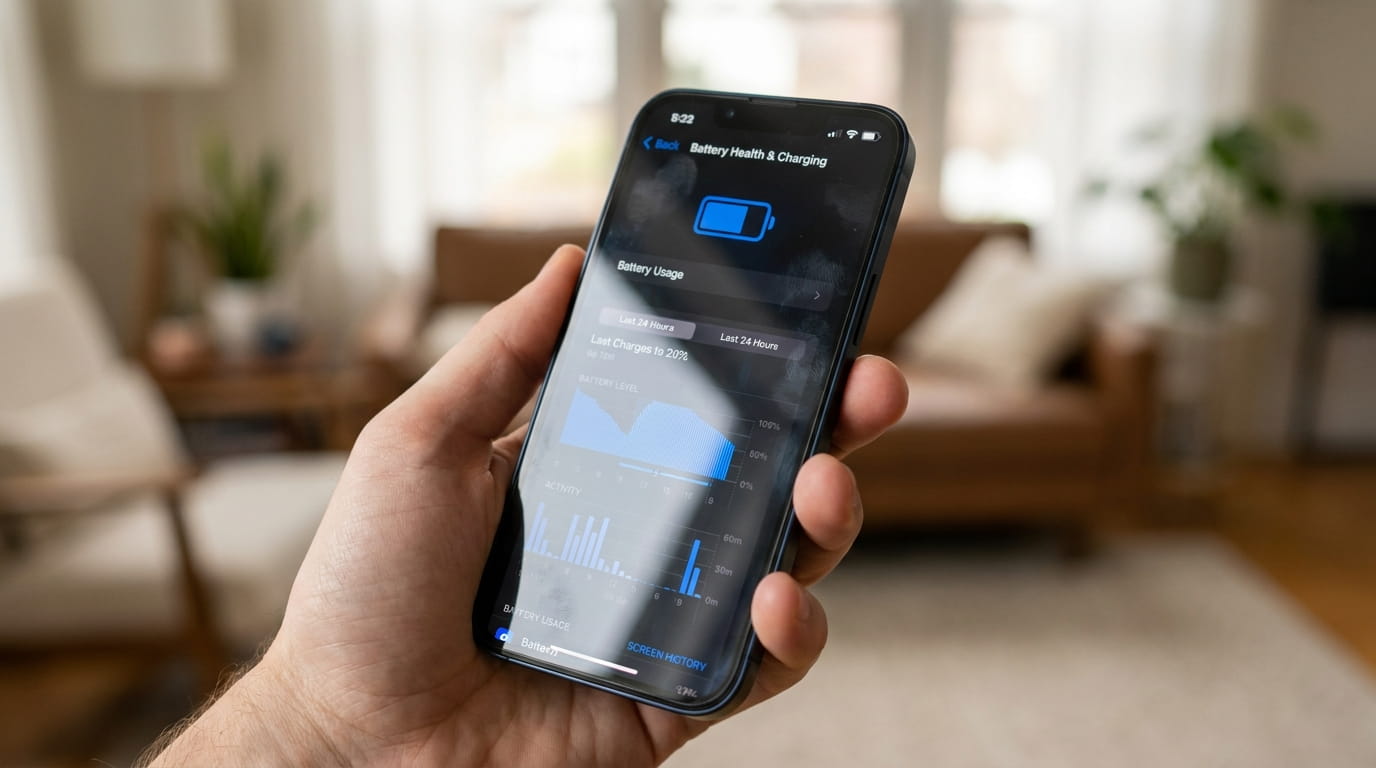
A working backup system has a pleasant side effect: the "storage almost full" warning stops being scary, because clearing space no longer risks losing anything. The key is to do it in this order, backup first, cleanup second, and to look before deleting. Both platforms show exactly where space went: Settings > General > iPhone Storage on iOS, Settings > Storage on most Android phones. Photos and videos are almost always the biggest slice, with one or two media-heavy apps in second place.
The cleanest big win is letting the cloud hold the originals. Apple's Optimize iPhone Storage setting, on by default once iCloud Photos is enabled, keeps full-resolution photos in iCloud and lightweight versions on the device, freeing space automatically as it runs low. Google Photos can similarly remove device copies of photos that are safely backed up. This recovers enormous space without losing a single image, but only do it once you have verified the cloud library is complete.
After photos, the same storage screen offers more easy recoveries:
- Offload unused apps. Apple's storage guide describes Offload Unused Apps, which removes rarely used apps while keeping their documents and data for a later reinstall. It is safe and often frees several gigabytes.
- Delete downloaded media. Offline episodes, podcast backlogs, and downloaded playlists are huge and re-downloadable. Check the download sections of streaming apps first.
- Review large attachments. Group chats full of videos add up; iOS surfaces a "Review Large Attachments" tool in the storage screen for exactly this.
- Clear bloated app caches. Android allows it per app (App info > Storage > Clear cache) without losing logins. iOS has no universal cache button, so deleting and reinstalling a bloated app is the equivalent.
- Stop the refill. Turn off automatic media saving in busy chat apps, which otherwise quietly write every meme a group sends into your camera roll.
Video deserves special mention because it distorts the math: a few minutes of 4K footage can consume a gigabyte, so a camera roll's storage problem is often a handful of long videos rather than thousands of photos. Sorting the library by file size, which both platforms' storage tools encourage, finds them fast. And one category not worth fighting is "System Data," which looks alarmingly large in storage breakdowns but consists of caches the phone manages itself; it shrinks on its own, especially after a restart, and is never where the easy wins are.
One warning amid the deleting: leave the Recently Deleted album alone until your backup has been verified, since emptying it is the only step here that is truly permanent. The discipline is the same as any good decluttering pass: secure what matters first, then be ruthless with the rest.
Mistakes that quietly ruin backups
- Confusing sync with backup. The number one way people lose photos, covered above, and worth repeating.
- Never testing a restore. Once a year, open a handful of random photos from the backup drive and confirm they load. A corrupted backup that is never checked is indistinguishable from no backup.
- One drive, forever. Drives fail with little warning, and a single external drive is one copy, not a safety net. Replace drives every five years or so rather than waiting for the click of death.
- Forgetting the odd folders. Screenshots, chat-app folders, and downloads sometimes live outside the photo library the cloud service watches. Spot-check that receipts and scanned documents are covered.
- Leaving the account itself weak. The cloud copy is only as safe as the account protecting it. A strong unique password and two-factor authentication matter here as much as anywhere; the case for a password manager applies doubly to the account holding every photo you own.
If you do nothing else this weekend: turn on cloud sync today, buy one external drive, and copy everything to it. That single hour moves you from one fragile copy to a real system, and photos are the one kind of file where that difference is permanent.
Frequently asked questions
Is iCloud or Google Photos alone enough of a backup?
It is far better than nothing, but it has two gaps: deletions sync everywhere within about 30 to 60 days, and the account itself can be locked or compromised. Adding one external drive you own closes both gaps and completes the 3-2-1 rule at a one-time cost.
How often should I update the local copy?
Quarterly is a sensible default for most people, and automatic tools like Time Machine or File History make it continuous whenever the drive is plugged in. The honest answer is: at whatever interval of lost photos you could tolerate. New parents tend to choose monthly.
What happens to my photos if I stop paying for cloud storage?
Services stop accepting new uploads once you exceed the free tier, and after an extended period over quota some may delete content per their policies. Nothing disappears instantly, but this is exactly why a local copy you own matters: it makes the subscription optional rather than a hostage situation.
Should I use USB sticks or burned discs for photo backup?
Not as a primary layer. Small flash drives are easy to lose and not designed for long-term archival storage, and optical discs degrade unpredictably. A proper external SSD or hard drive, plus a cloud copy, is cheaper per gigabyte and far more dependable.
Sources & further reading
- Set up and use iCloud Photos — Apple Support
- Manage your photo and video storage — Apple Support
- Manage storage on iPhone — Apple Support
- Back up photos and videos — Google Photos Help
- The 3-2-1 Backup Strategy — Backblaze
- Backblaze Drive Stats for 2024 — Backblaze