 Expertspost
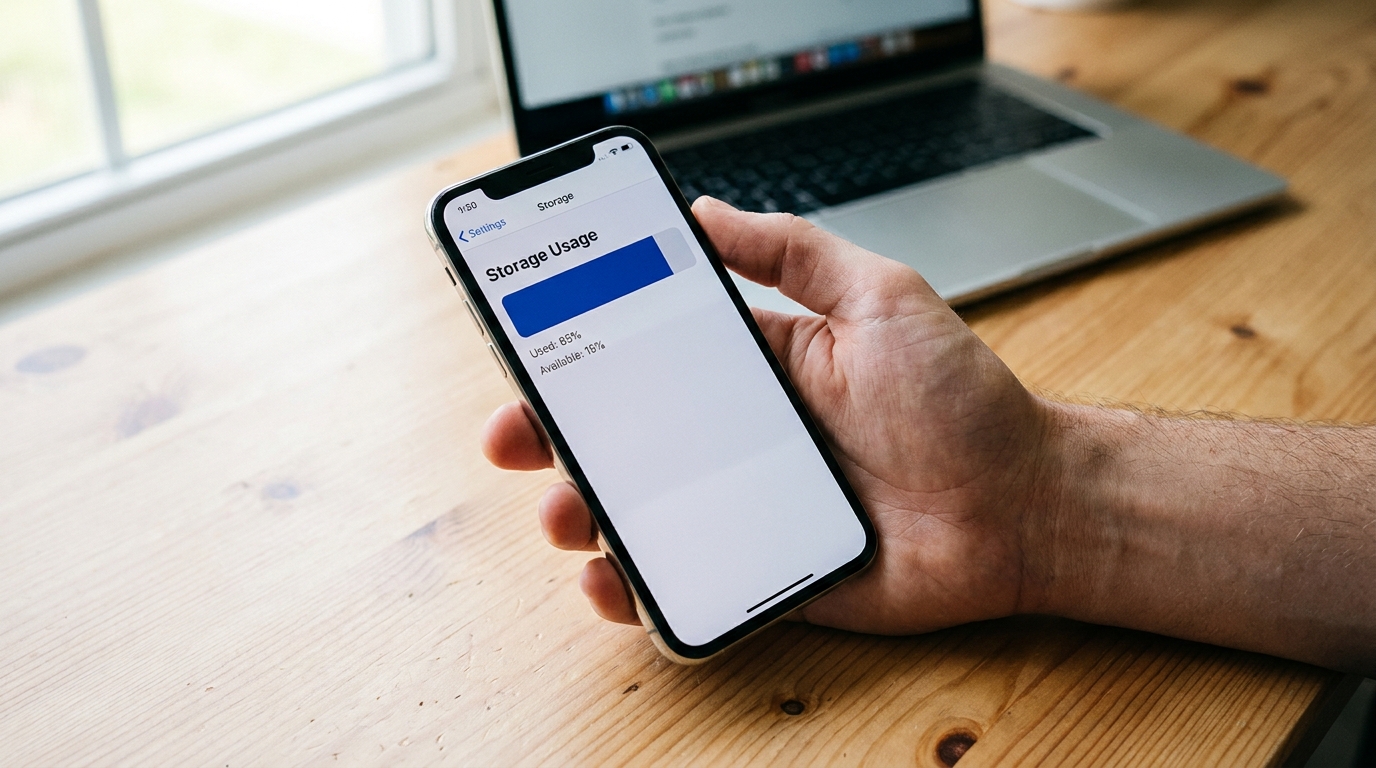
Few phone messages cause as much low-grade panic as “Storage Almost Full,” usually arriving at the worst moment — mid-update, or just as you raise the camera for a shot you can't retake. The reflex is to start deleting photos, which is both the most painful option and rarely the one that helps most. In nearly every case you can reclaim plenty of space without losing a single picture. This guide works through where the space actually goes, in order of how much it returns, using Apple's and Google's own tools rather than third-party “cleaner” apps, most of which do little the phone can't do itself.
First, see where the space actually went
Don't guess — your phone keeps an itemized breakdown. On iPhone, open Settings > General > iPhone Storage; on most Android phones, Settings > Storage. After a moment you'll see a colored bar splitting usage into Photos, Apps, Media, Messages, and System, followed by a per-app list sorted by size. iOS also shows tailored recommendations at the top.
This thirty-second look changes the whole job. The culprit is almost always one or two categories — typically Photos and a couple of bloated apps — not a thousand small files. Two or three targeted actions usually clear several gigabytes, which is the difference between a real fix and an evening of fiddly deleting. Start where the bar is biggest and stop once you've bought enough breathing room; you rarely need to empty the whole phone.
Photos: the big one, without deleting them
Photos and videos are the largest hog on most phones, and a single minute of 4K video can eat well over 300 MB. But “too many photos” is a storage problem, not a memories problem — the fix is to move the originals off the phone, not into the trash.
Turn on cloud backup — Google Photos on Android, iCloud Photos on iPhone — and let it finish uploading. Then use the app's built-in cleanup: in Google Photos it's Free up space, on iPhone it's Optimize iPhone Storage. Both keep small preview versions on the device and store the full-resolution files in the cloud, so your library looks identical and every picture opens — it just downloads the original when you actually need it.
Two settings make this far more effective:
- Pick the right backup quality. Google's Storage saver mode backs up at a slightly reduced resolution that's indistinguishable on a phone screen and uses a fraction of the space of Original quality. For everyday snapshots it's the sensible default; reserve Original for photos you'll print large.
- Use the cleanup finder. Google Photos' storage management tool surfaces the easy wins — blurry shots, screenshots, and large videos — so you can clear genuine clutter without scrolling through years of memories.
“Too many photos” is a storage problem, not a memories problem. Move the originals, don't bin them.
One honest caveat: free cloud tiers are small — 15 GB on a Google account, 5 GB on iCloud, both shared with other services. If you have years of photos, the durable fix is a modest paid tier, which also gives you an off-device backup of pictures you could never recreate. That second benefit is the one that matters most; see how to back up your photos so you never lose them for the full picture.
Apps: offload instead of delete
After photos, apps are usually the next-largest slice — and the size shown is often mostly data the app has accumulated, not the app itself. A social or streaming app can balloon to several gigabytes of cached video over time.
On iPhone, the gentle option is Offload App, which Apple describes in its storage guidance: it removes the app but keeps its documents and data, so reinstalling later restores everything exactly where it was. Tap an app in the iPhone Storage list to offload it, or enable Offload Unused Apps to let iOS do it automatically when space runs low. The app's icon stays on the home screen with a small cloud marker.
The practical routine: scroll the per-app list, and for anything large you haven't opened in months, offload it (iPhone) or uninstall it (Android — your account and cloud data stay intact, the app re-downloads anytime). Games and old apps you tried once are the usual easy gigabytes. You're not losing anything you use; you're parking what you don't.
The hidden junk: caches, downloads, messages
A few quieter categories add up to real space once photos and apps are handled:
- Messages and their attachments. Years of photos, videos, and voice notes in chat threads can occupy gigabytes. iPhone can auto-delete old conversations (Settings > Messages > Keep Messages) and lists large attachments under iPhone Storage. In WhatsApp, Manage Storage shows the biggest space-takers and the items forwarded many times.
- Downloads and offline media. Downloaded podcasts, offline playlists, Netflix titles, and a cluttered Downloads folder are easy to forget. Clearing watched downloads is painless — they re-download on demand.
- Browser and app caches. On Android, App info > Storage > Clear cache reclaims temporary files without touching your logins or settings. iOS has no per-app cache button, so offloading is the equivalent move there.
Skip the third-party “phone cleaner” and “booster” apps that promise to do all this in one tap. They take up space themselves, lean on alarming notifications to stay installed, and rarely free more than the built-in tools — which are safer because they know which files actually matter.
Stop it from filling up again
Clearing space once is satisfying; not having to do it again is better. A few set-and-forget changes keep the warning away:
- Leave cloud photo backup on, with cleanup automatic. This single habit prevents the most common cause of a full phone from ever returning.
- Turn on automatic offloading of unused apps (iPhone) so rarely used apps quietly step aside before space runs out.
- Right-size your photo and video capture. If you rarely shoot for big screens, recording in 1080p instead of 4K, or turning off saving both the HDR and original frame, roughly halves the space each clip and photo takes — with no visible difference on a phone.
The reassuring takeaway is that a full phone is almost never a real crisis, and it's certainly not a reason to delete your memories. The space is going somewhere specific and visible, the tools to reclaim it ship with the phone, and ten minutes of the right moves buys back more room than an hour of anxious deleting. Sort it once properly and the warning mostly stops coming back.
Frequently asked questions
If I move photos to the cloud, are they safe to remove from the phone?
Only once they're fully backed up. In Google Photos or iCloud Photos, confirm the backup has finished and then use the app's own “free up space” tool, which removes only the local copies it has already uploaded. Don't delete photos manually from a gallery app to save space — on a synced library that can delete them from the cloud too. Let the official tool decide what's safe.
Will clearing an app's cache delete my data or log me out?
Usually not. A cache is temporary files the app can rebuild — thumbnails, downloaded media, web data. Clearing it frees space and the app refetches what it needs next time. You generally stay logged in. The exception is anything stored only on the device, like unsent drafts or downloaded offline content, so check before clearing storage on apps you use offline.
Is it worth paying for extra cloud storage?
For most people with a few years of photos, yes — it's the cheapest way to stop the problem permanently and keep an off-device backup of irreplaceable pictures. Google gives every account 15 GB free shared across Gmail, Drive, and Photos; Apple gives 5 GB of iCloud. Both fill quickly. A small paid tier costs a coffee or two a month and removes the recurring “storage full” scramble entirely.
Sources & further reading
- How to check the storage on your iPhone and iPad — Apple Support
- Manage storage on iPhone — Apple Support
- Choose the backup quality of your photos & videos — Google Photos Help
- Manage your storage in Google Photos — Google Photos Help