 Expertspost
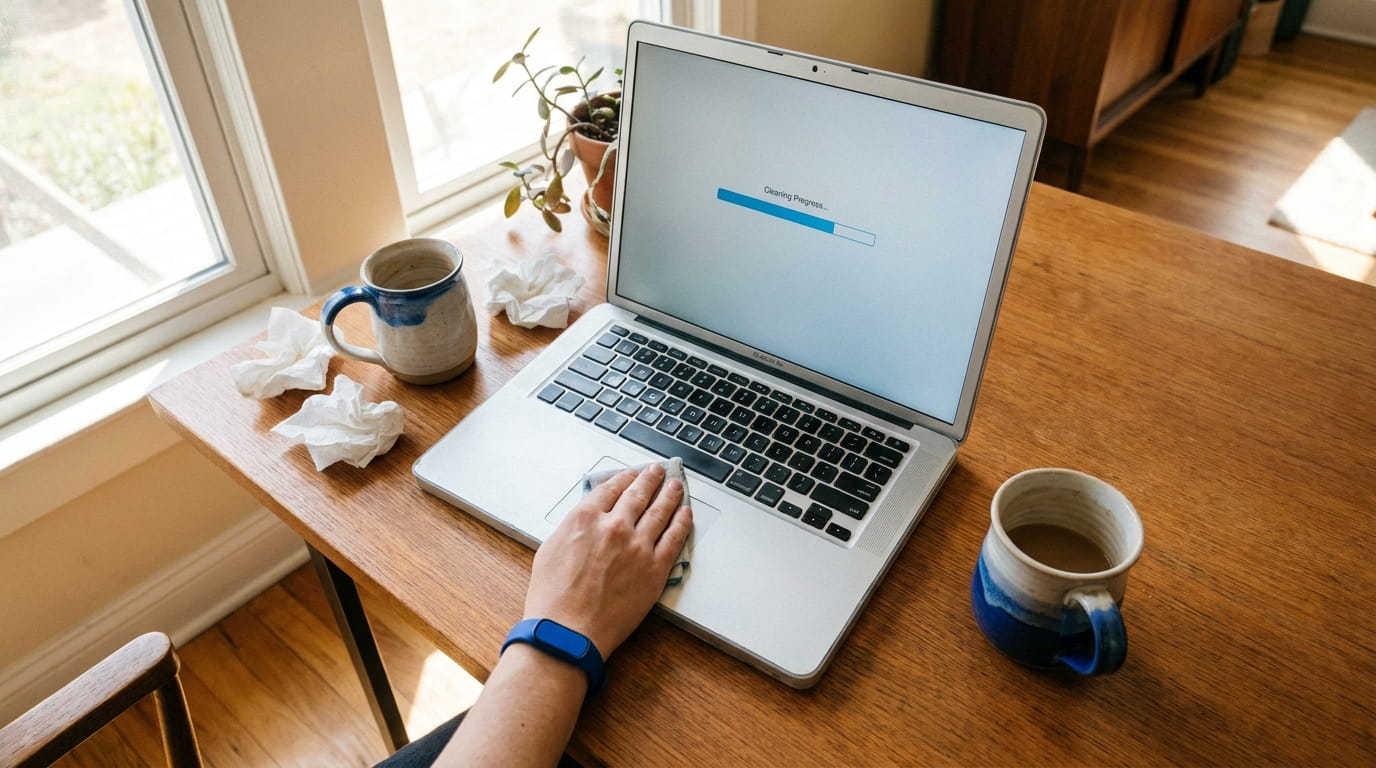
Most "dead" laptops are not dead; they are bottlenecked, usually by one specific component, and the fix costs a fraction of a replacement machine. A laptop from 2017 that takes a minute to open a browser can very often be brought back to booting in under twenty seconds with a weekend's effort. The work splits into diagnosis, free software cleanup, and two possible hardware upgrades, in that order.
Figure out what is actually slow
Open Task Manager on Windows (Ctrl+Shift+Esc) or Activity Monitor on a Mac and watch what happens while the machine struggles. The question is which resource is pinned near 100 percent: CPU, memory, or disk. The answer dictates the fix, and skipping this step is how people buy RAM that changes nothing.
On a large share of pre-2018 budget and mid-range laptops, the bottleneck is the disk sitting at 100 percent while everything else idles. That is the signature of a mechanical hard drive, the single biggest reason machines of that vintage feel like wading through mud. Windows makes the check easy: Task Manager > Performance > Disk literally labels the drive "HDD" or "SSD." If it says HDD and the disk is pegged, you have found the answer, and the software cleanup below is merely a bonus.
One physical possibility worth ruling out: heat. A laptop whose fan vents are clogged with years of dust will throttle its own processor to stay cool, which feels exactly like generic slowness. If the fan roars constantly and the chassis runs hot, a careful clean of the vents with compressed air is a free fix that occasionally works wonders.
The free software fixes
These cost nothing and sometimes suffice. They also track closely with Microsoft's own performance guidance for Windows, which is a useful sanity check that none of this is folklore.
- Cull startup programs. Task Manager > Startup apps on Windows, System Settings > General > Login Items on a Mac. Old laptops accumulate a dozen updaters and helpers that fight for resources at boot.
- Uninstall what you do not use. Trialware, toolbars, and the third PDF reader may each be running something in the background.
- Free disk space. A nearly full drive slows down badly. Microsoft recommends Storage Sense and Disk Cleanup for clearing temporary files; aim to keep at least 10 to 15 percent of the drive free.
- Run a malware scan. Microsoft's guidance lists this for a reason: malware consumes CPU and disk quietly, and the built-in Microsoft Defender full scan is free. Worth ruling out early.
- Apply updates once, then relax. A round of system updates can include real performance fixes; constant background updating on very old hardware is itself a drag, so let it finish and settle.
- Check for a tab problem. Sometimes the laptop is fine and the user has forty tabs and six extensions open. Closing them is free.
Registry cleaners and "speed booster" apps deserve a specific warning: skip them. They promise miracles, frequently cost money, and at best do nothing. Everything genuinely useful is built into the operating system or is a physical part.
The one upgrade that actually matters
If the laptop still has a mechanical hard drive, replacing it with a solid-state drive is the most dramatic upgrade per dollar in consumer computing. A solid 1 TB SATA SSD now costs roughly the price of a nice dinner out, and the change is transformational: boot times drop from minutes to seconds, applications open immediately, and the machine feels new because the part that was strangling it is gone.
The catch is upgradeability. Many older laptops have a removable bottom panel and a standard 2.5-inch drive that swaps with a screwdriver and a model-specific video tutorial. Thin-and-light models and most recent MacBooks solder storage to the board, which means no upgrade, so search your exact model number plus "SSD upgrade" before buying anything.
A quick note on drive types, since the listings are confusing: older laptops take 2.5-inch SATA SSDs, while somewhat newer ones may have an M.2 slot for a stick-shaped drive, and the two are not interchangeable. The model-specific search clarifies which one applies. Speed differences between SATA and the faster NVMe M.2 drives are real on paper but nearly irrelevant here; coming from a mechanical drive, either one delivers the same night-and-day improvement.
Two cautions before surgery. Back up everything first, since the process removes the disk holding all your files, and verify the copy actually opens. Then either clone the old drive to the new one with cloning software (easier for beginners) or do a fresh OS install (cleaner result). If that sounds intimidating, an independent repair shop will do the whole job for a modest labor charge, still far below the cost of replacement.
When more RAM helps
RAM is the second lever, and it only moves if memory was the bottleneck in your diagnosis. If memory sat pinned high with heavy disk swapping, more helps; if half the memory sat free, adding more does nothing at all.
For general use, 8 GB is the comfortable floor and 16 GB suits heavy multitaskers. The jump from 4 GB to 8 GB on an old machine is immediately noticeable, because 4 GB forces constant swapping to disk, which is agonizing on a hard drive. As with storage, check whether your model has accessible RAM slots, since many modern laptops solder memory down. The classic combination, SSD plus a bump to 8 GB, is what turns a frustrating 2017 machine into a genuinely pleasant one.
When to go lightweight or stop
If the hardware cannot be upgraded, or the laptop no longer receives security updates, there are still options before the recycling bin.
- A lighter operating system. Linux Mint is the usual recommendation for retired Windows machines: free, far less demanding of old hardware, and deliberately familiar to Windows users. There is a learning curve, but for web, email, and documents it is excellent.
- ChromeOS Flex. Google's free ChromeOS Flex turns an old laptop into a Chromebook-style machine that runs on most Intel and AMD hardware. Ideal for someone whose entire computing life is a browser.
- Repurpose it. An old laptop makes a fine kitchen recipe screen, homework machine, or media box behind the TV.
There is a real stopping point: when the hinge is cracking, the battery lasts twenty minutes, and the keyboard is failing simultaneously, further spending is pouring money into a sinking boat, and a refurbished replacement makes more sense. But for the common case of "it got slow," the fix is usually an SSD and a cleanup, not a credit card. The same repair-first logic applies to phones, where a worn battery rather than the whole device is usually the part worth replacing.
Sources & further reading
- Tips to improve PC performance in Windows — Microsoft Support
- Activity Monitor User Guide — Apple Support
- Differences between ChromeOS Flex and ChromeOS — Google Help
- Linux Mint — Linux Mint