 Expertspost
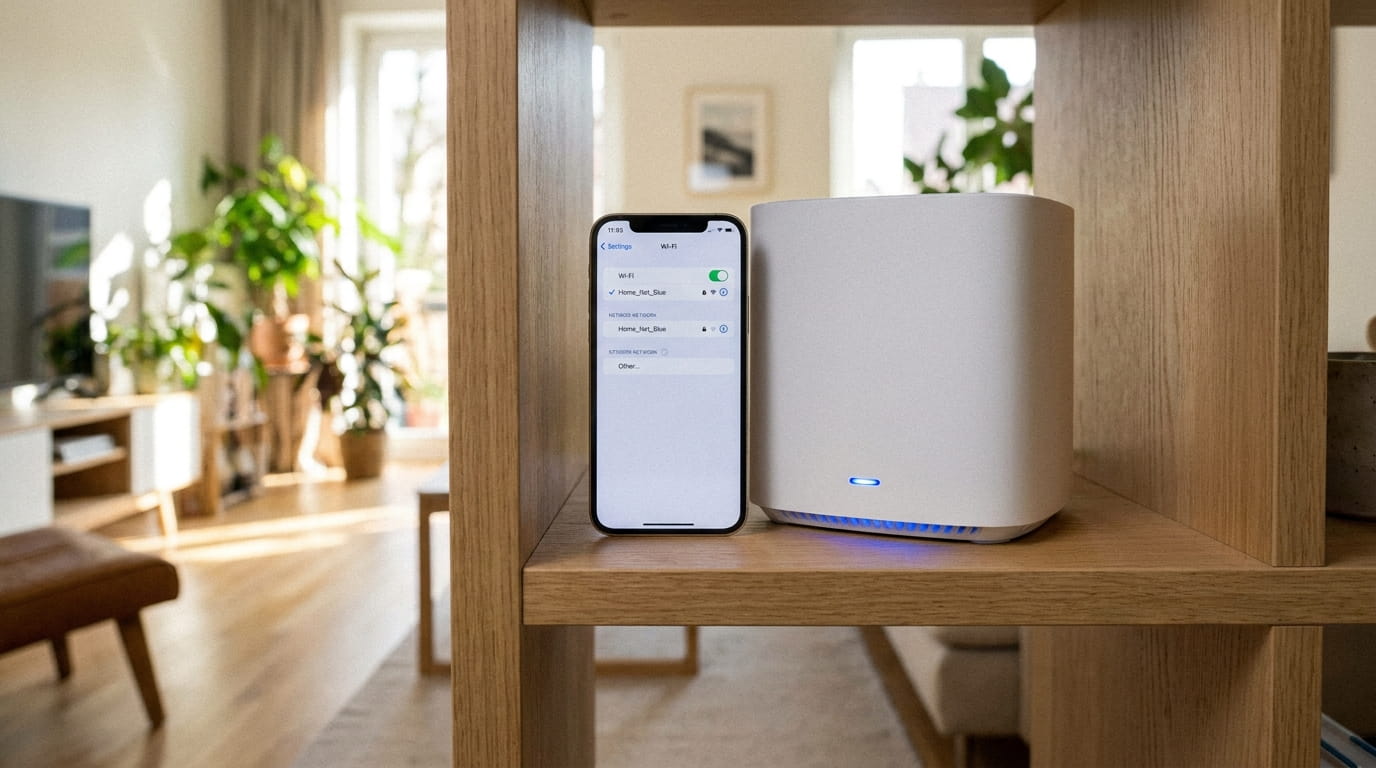
Routers are the most neglected computers in the house: they run continuously for years, hold the keys to every device on the network, and most owners never log into them once. That is rational in a way, since the box works out of the carton, but it leaves easy security and performance gains on the table. The changes below take an evening, and they track closely with the Federal Trade Commission's published guidance on securing a home Wi-Fi network, which is a usefully short list of what actually matters.
Getting into your router settings
Everything here happens in the router's settings interface, reached one of two ways. Newer routers and mesh systems use a phone app, and the whole job happens there. Older or standalone routers use a web page: type the router's address into a browser, commonly 192.168.1.1 or 192.168.0.1, usually printed on a sticker on the device along with the default login.
If neither common address works, the router's actual address is easy to look up from any connected device: on Windows it appears as "Default Gateway" when running ipconfig in a command prompt, on a Mac under System Settings > Wi-Fi > Details > Router, and on phones inside the Wi-Fi network's detail view. Whatever device you use, do this from inside the home network; the settings page is deliberately not reachable from the wider internet unless someone has enabled remote access, which is a setting addressed below.
That sticker is worth a moment's thought. It means anyone who can physically see the router, guests, contractors, a previous tenant, has seen the default credentials. Which brings us directly to the first change.
Change the admin password
The admin password protects the router's settings themselves and is separate from the Wi-Fi password. Default admin credentials are public knowledge, frequently literally "admin" and "password," and the FTC's first instruction is to change the default administrative username and password precisely because anyone on the network could otherwise reconfigure the router, change DNS settings, or undo every other protection on this list.
The stakes are higher than they look, because a router is the chokepoint for everything behind it. An attacker with admin access can silently change the network's DNS settings, redirecting every device in the house to convincing fake versions of banking and email sites, the kind of invisible compromise no individual device's antivirus would flag. That is why this single setting outranks every other on the list.
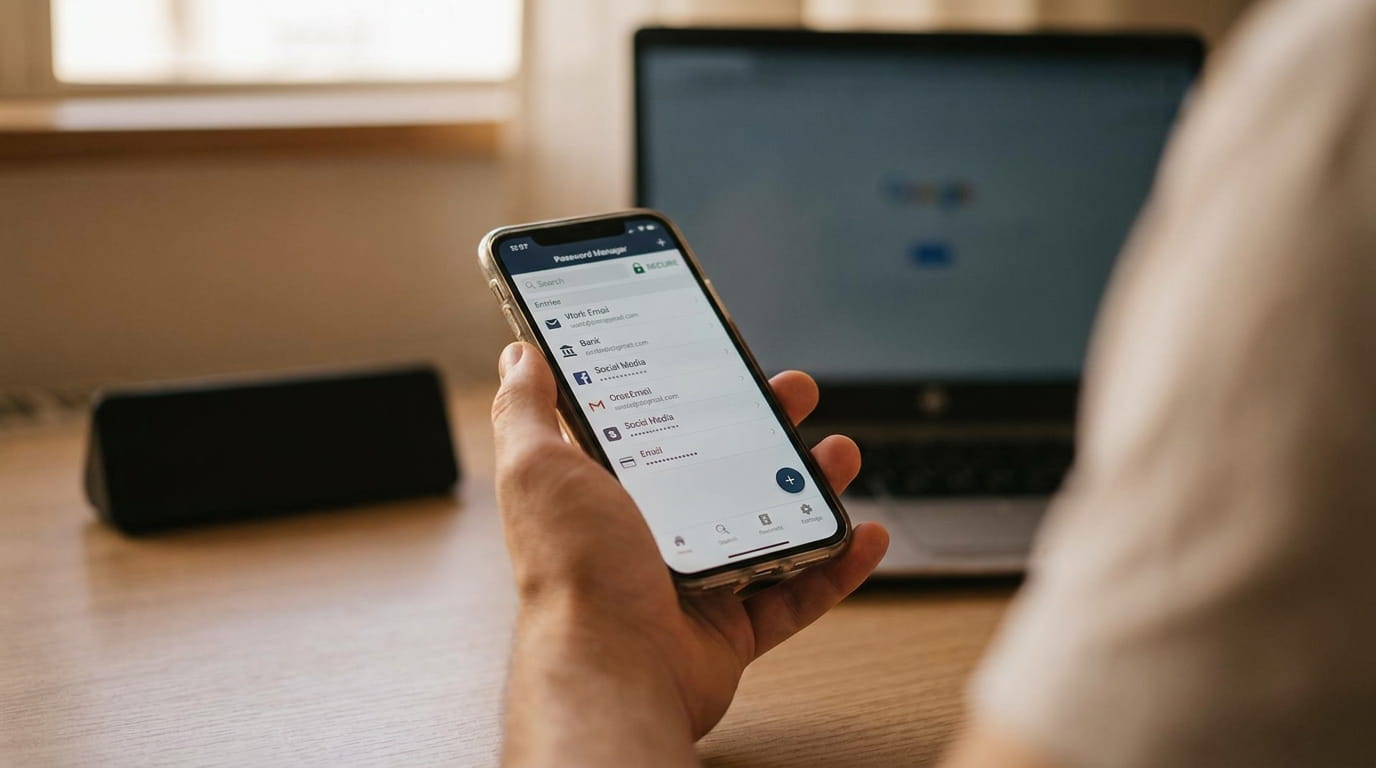
Make it strong and unique, store it in a password manager if you use one (the case for which we lay out separately), and write it down somewhere safe regardless, because it gets used once a year and is otherwise guaranteed to be forgotten. For a secondhand or hand-me-down router, go one step further: factory reset first, then set fresh credentials, which removes any configuration or access left by the previous owner.
Set a strong Wi-Fi passphrase and WPA3
The Wi-Fi password is the one devices use to join the network, and it is routinely confused with the admin password above; they are different locks on different doors, and both need to be strong. The random string on the sticker is actually fine security-wise; the trouble starts when people replace it with something short and memorable, a pet's name or a street address, which is also the information most guessable by anyone who knows the household. The better pattern, consistent with NIST's password guidance, which emphasizes length over forced complexity, is a long passphrase of a few unrelated words: easy to type on a TV remote, hard to brute-force, and you only enter it once per device anyway.
A long passphrase of a few random words beats a short jumble of symbols every time.
While in the same menu, check the security mode. The FTC's guidance is to use WPA3 Personal where available and WPA2 Personal as the floor; the Wi-Fi Alliance, which certifies these protocols, notes that WPA3 specifically adds stronger protection against password-guessing attempts. Avoid WEP and "open" entirely, since WEP has been trivially breakable for two decades. Most routers offer a WPA2/WPA3 mixed mode that keeps older devices connecting while using the newer standard where possible, which is the sensible choice for a typical home.
While renaming the network, follow the FTC's small but sensible note: do not put identifying information in the network name. An SSID like "Miller-Apt4B" broadcasts to the whole street whose network it is, and a name containing the router's brand and model hands an attacker a head start on known vulnerabilities. Anything neutral and recognizable to you is fine.
Turn on automatic firmware updates
Firmware is the router's internal software, and updates patch security holes that are actively scanned for across the internet. The problem is cultural: phones nag about updates, routers do not, so an unpatched router can sit exposed for years. CISA's general guidance on software updates applies squarely here: turn on automatic updates wherever the option exists, because patches only protect the people who install them.
Look for a firmware or system update section in the settings and enable auto-update; modern mesh systems do this silently, which is one of their quiet advantages. If the option does not exist, set a twice-yearly reminder to check manually, and while there, search the manufacturer's support site for the model's end-of-support date. A router the maker no longer updates at all is carrying every vulnerability discovered since its last patch, and that fact alone is a reason to replace it; if coverage is also poor, a mesh system solves both problems in one purchase. For ISP-supplied routers, the FTC suggests checking with the provider about whether updates arrive automatically.
Create a guest network
A guest network is a second Wi-Fi name that grants internet access without admitting devices to the main network where your computers and file shares live. Nearly every router supports it, and the FTC recommends it for a simple reason: fewer people holding the primary password, and visiting devices kept at arm's length.
Its second job is arguably more valuable: it is the right home for smart home gadgets. Cheap bulbs, plugs, and cameras, the kind featured in our guide to a subscription-free smart home, are the least-trusted devices in the house, and isolating them means a vulnerability in one cannot reach your laptop or network storage. If the router offers "client isolation" on the guest network, which stops guest devices talking to each other, turn it on; for a network of gadgets and visitors, containment is the entire point.
Practical details that make the guest network pleasant: give it an obvious name, set a passphrase you are comfortable saying out loud, and change it whenever it has spread further than you would like, which costs nothing since none of your own primary devices depend on it. One caveat for smart home setups: a speaker or hub that controls devices usually needs to sit on the same network as the devices it controls, so put the whole gadget collection on one network rather than splitting it.
Switch off WPS, UPnP, and remote management
This is the change most setup guides skip. The FTC's home-network guidance specifically advises turning off three convenience features that weaken security: remote management, which exposes the router's admin interface to the wider internet; WPS (Wi-Fi Protected Setup), the push-button pairing system with known brute-force weaknesses; and UPnP (Universal Plug and Play), which lets devices on the network open ports to the internet automatically and unsupervised.
UPnP deserves the longer explanation, because its risk is the least obvious. It exists so that devices, a game console, a camera, a printer, can ask the router to open a path from the internet to themselves without you configuring anything. The convenience is real, but so is the failure mode: any compromised or badly written device on your network can quietly punch holes in the firewall, and you will never see a prompt. With it off, the rare application that genuinely needs an open port can be given one manually, on purpose, for that device alone.
All three live under names like "Remote Access," "WPS," and "UPnP" in the advanced settings, and switching them off costs nothing day to day. The rare household that needs one will notice and can re-enable it deliberately, which is exactly the right order of operations: off by default, on with a reason.
Bands, channels, and the settings to skip
The remaining settings are about speed and sanity rather than security.
- Use both bands wisely. Routers broadcast on 2.4 GHz, longer range and better wall penetration but slower and more congested (it shares the band with microwaves, baby monitors, and Bluetooth), and 5 GHz, considerably faster but shorter range. Newer Wi-Fi 6E and Wi-Fi 7 routers add a 6 GHz band, faster and emptier still, for devices recent enough to use it. Many routers present one network name and steer devices automatically, which is fine; if yours splits the names, put nearby high-traffic devices on 5 GHz and distant low-traffic gadgets on 2.4 GHz.
- Try a different channel in dense housing. In apartment buildings, neighboring networks pile onto the same channels. On the crowded 2.4 GHz band, only channels 1, 6, and 11 avoid overlapping each other, which is why those three are the ones worth trying. Most routers auto-select reasonably, but a manual change occasionally helps, so treat it as a thing to try when congestion is the symptom, not a ritual.
- Schedule access if it helps the household. Most routers can pause Wi-Fi per device on a schedule, under parental controls or similar, which beats confiscating tablets at bedtime.
- Position beats configuration. Central, elevated, out of cabinets. A relocated router fixes a remarkable number of "dead zones" for free, and hardware is the answer only when geometry is not.
Two settings earn a deliberate skip. Hiding the network name (SSID) feels like security and provides essentially none, since the network remains detectable to anyone with free tools, while making every new device fiddlier to connect. MAC address filtering is similarly more hassle than protection: tedious to maintain and trivial for an attacker to spoof past.
A reasonable maintenance rhythm after the initial setup is one five-minute checkup a year: open the settings, confirm firmware is current, skim the list of connected devices for anything unrecognized, and change the guest password if it has drifted into too many hands. Most routers name connected devices well enough that an interloper stands out. That, plus the one-time changes above, covers what actually matters; the rest of the settings page can be closed with a clear conscience until next year.
Sources & further reading
- How To Secure Your Home Wi-Fi Network — Federal Trade Commission
- Wi-Fi Security — Wi-Fi Alliance
- NIST SP 800-63B: Digital Identity Guidelines — Authentication — NIST
- Update Software — CISA